1. Home
  2. Enhance Panel
  3. Email Information
  4. Reset email account password

Reset email account password

To do this you first need to be logged into enhance panel you can learn how to do this HERE then come back to this article.

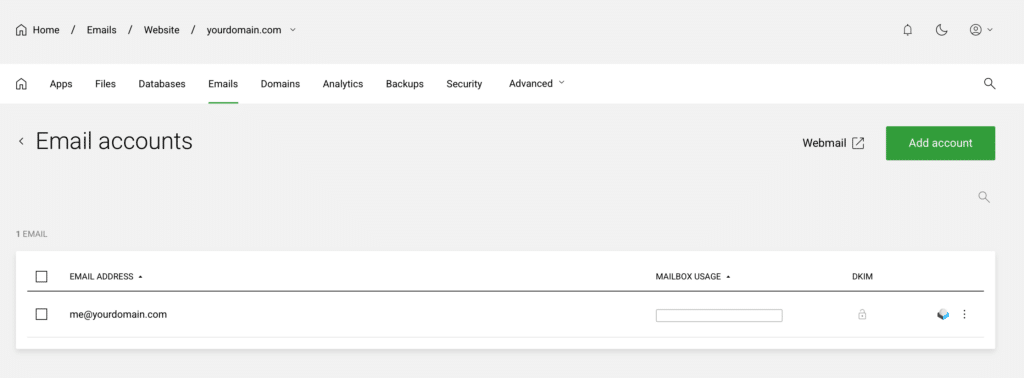
Choose the relevant website and click Emails as shown below

Choose the email address

Click on the line of the relevant email address

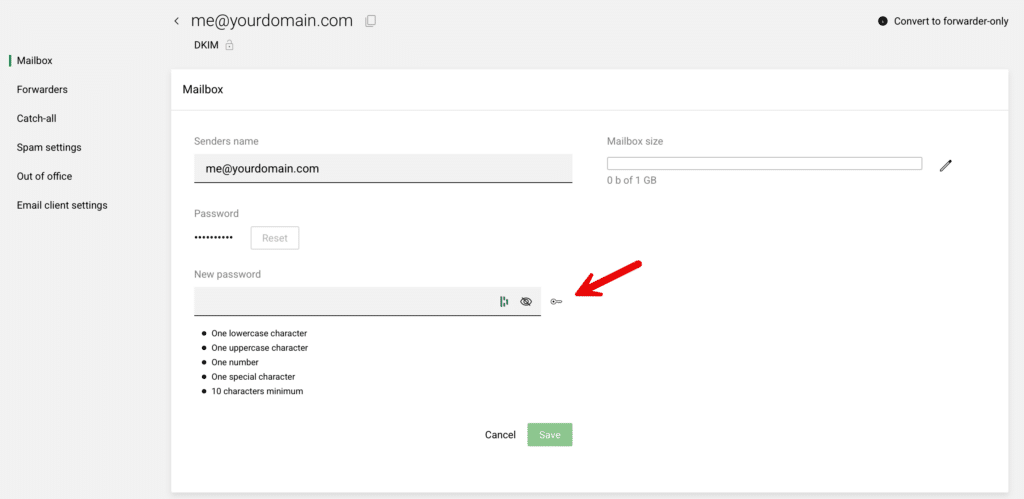
Click on Reset to change the password

Now either enter your own password or click the Key as shown to have one generated for you and click Save
Your password is reset

Your password is now changed.

If you reset your password, remember to update it everywhere you use the account – your phone, your computer, and any other devices. A device still trying the old password is the most common cause of repeated password prompts.

Updated on July 6, 2026
Was this article helpful?

Related Articles

Need Support?
Can't find the answer you're looking for? Don't worry we're here to help!
GET SOME HELP!