
Adding a subdomain

To do this you first need to be logged into enhance panel you can learn how to do this HERE then come back to this article.

It’s important to understand any websites added as subdomains or addon domains share the same resources and file system as the main website. This means if you’re using all the plan resources already, need to have it’s own full plan resources or for security/separation purposes you need to not share the same file system then you need a new website plan for that purpose – you can view our plans on our website HERE

Adding a sub domain

To add your sub domain first list your websites by clicking as shown below
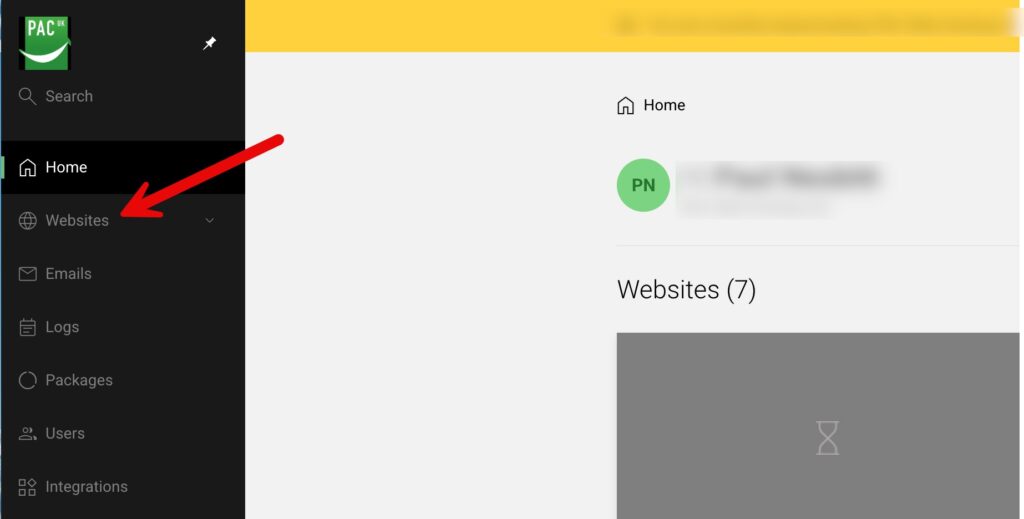
Choose the existing website to add it to

From the list of your websites click the line of the relevant website to enter management for that website as shown below
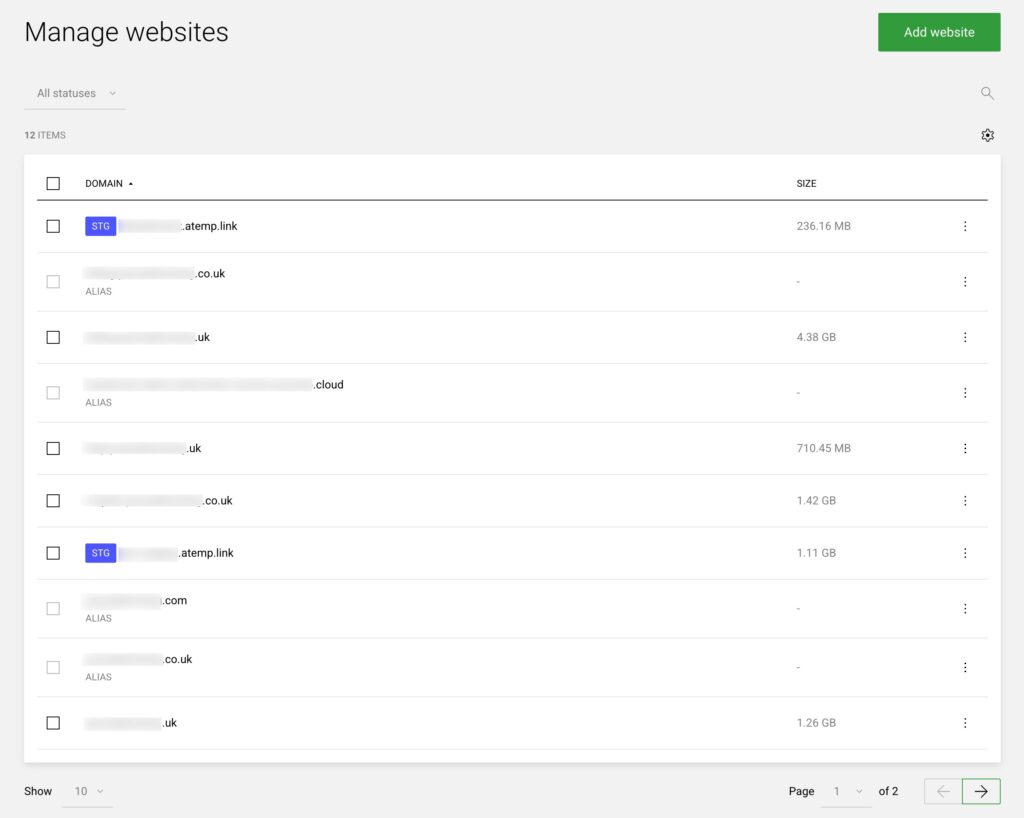
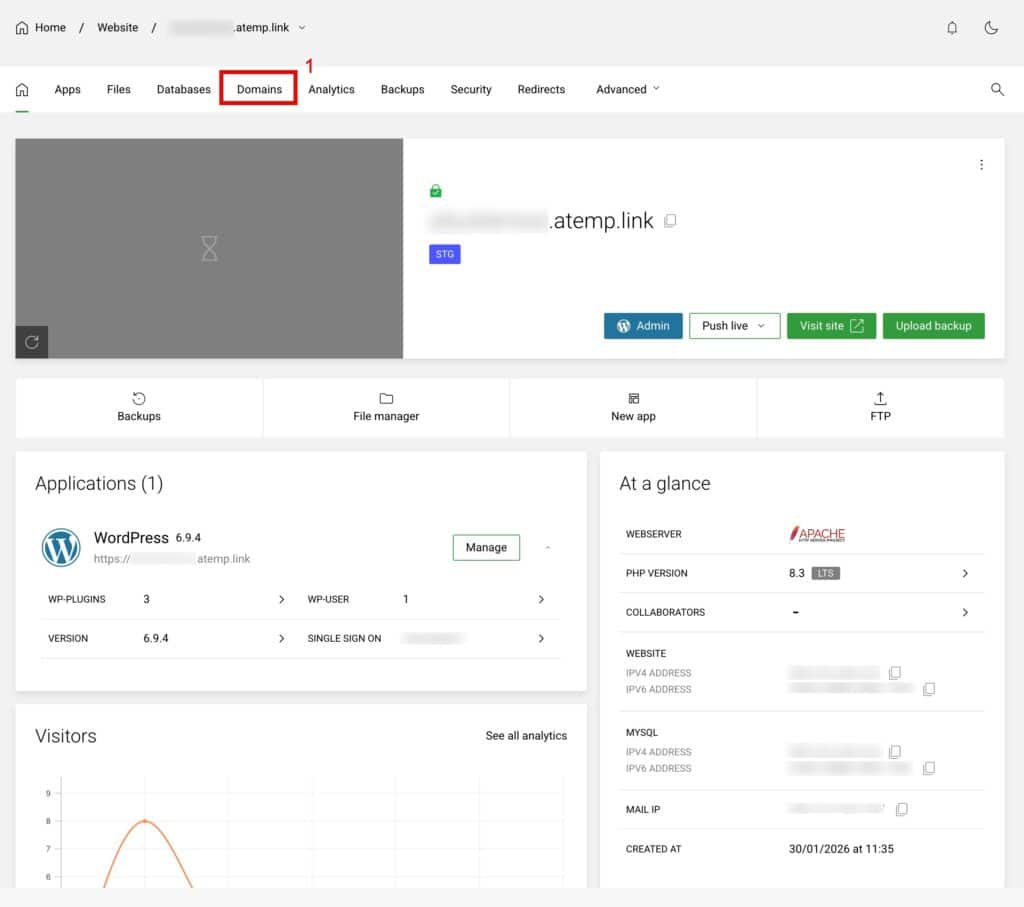
View the domains within this website

To do this click Domains as shown below
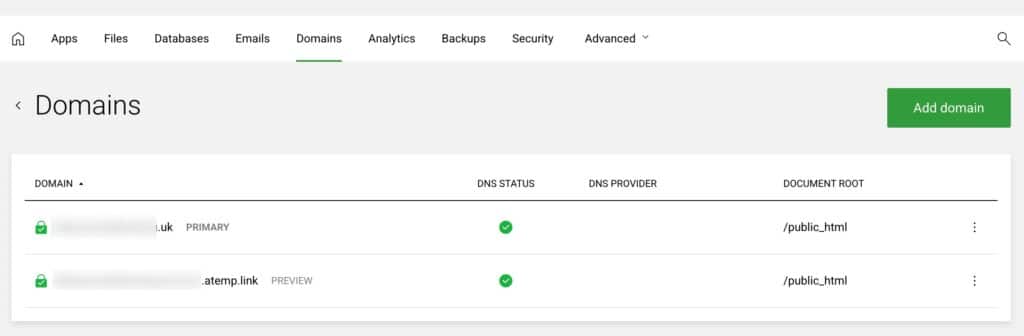
You will now see a list of domains

This list of domains are domains that reside within the domain you are managing, this is the one you selected from your main list of domains above.

Now click “Add Domain” as shown on the screenshot below
Now add your subdomain

Referencing the screenshot below enter your subdomain in box 1
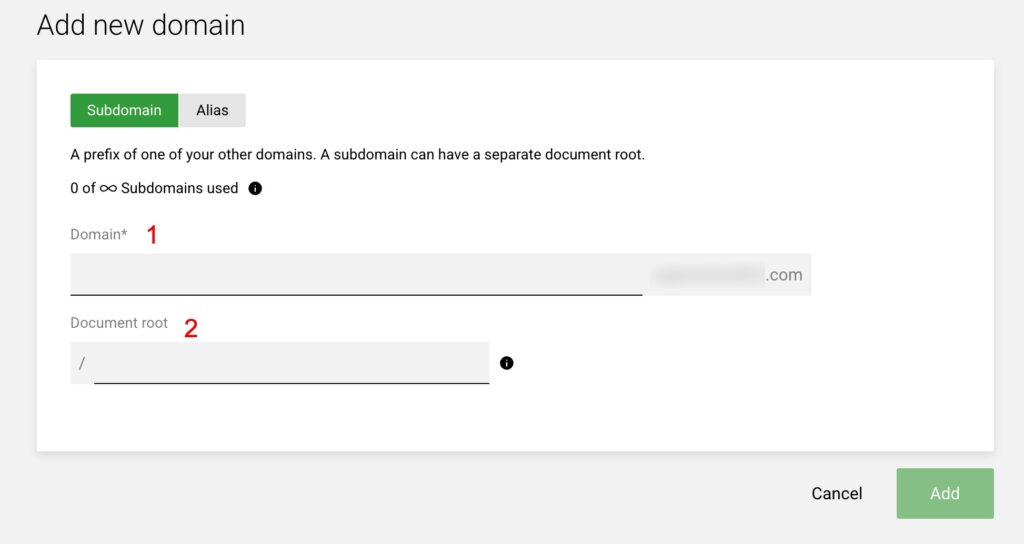
Make sure to only enter the first part of your subdomain so for billing.domain.com as an example only put billing in box 1 you can leave box 2 with the suggested value from the system unless you have a specific path you need to point it to, although most people will not need to do that.

You can only add a subdomain of your main website domain when adding a sub domain to an existing website.

Once done just click “Add” and your sub domain is added.

Updated on June 18, 2026
Was this article helpful?

Related Articles

Need Support?
Can't find the answer you're looking for? Don't worry we're here to help!
GET SOME HELP!